


TLDR: I gave Claude Code a two-way bridge into my Figma file. It reads my canvas, fixes it, and builds on it directly, with more than thirty tools running on the live file. I built it because I already run everything through Claude, so the natural move was to bring Claude onto the canvas, not adopt a separate AI inside Figma.
Why Claude, and not Figma’s AI
I already pay for Claude. I am on the Enterprise plan, and I am in it all day, for everything.
The subscription is the small part. The real weight is everything I have built around it. The plugins I run, the MCP servers I have connected, the skills I have written, my CLAUDE.md files, the project memory, and the taste I have taught it over months. None of that transfers to a different AI. It is the thing that makes the agent actually useful, and it all lives in Claude.
Claude is also where my work starts. Every project, every build, the terminal is already open. It is my starting point, not something I switch into.
So when I want to work on a Figma file, I do not want to jump into a different AI inside Figma and start that relationship from zero. I want the agent that already knows my work to reach into the canvas. Same context, same memory, same taste, now with hands in Figma. Using Claude on Figma is not a workaround. For how I work, it is the natural move.
That is the whole reason DesignAgent runs two ways now. For months it only ran one. I would select a screen, it turned the design into a spec and a code-gen prompt, I pasted that into Claude Code, and the UI came out somewhere else, in the editor, away from the file my team lived in. I cut a design-to-engineering handoff from about two weeks to four hours once with Figma Code Connect, and the lesson stuck: every time you remove a copy-paste between two tools, the work gets faster and the result stays truer. DesignAgent still had one of those seams in the middle. So I closed it.
DesignAgent now has a two-way bridge. Claude Code can read the canvas, fix things on the canvas, and create on the canvas directly. The handoff runs both directions.
What “two-way” actually means
Claude Code is connected to the open Figma file. It can read the selection, then act on it. Move a layer. Fix the padding. Swap a raw hex for a token. Create a frame, text, a shape, an image. Restyle, regroup, re-layout. There are more than thirty tools on Claude’s side, and they all run against the live file. The canvas is now something Claude works on, not just something it reads from.
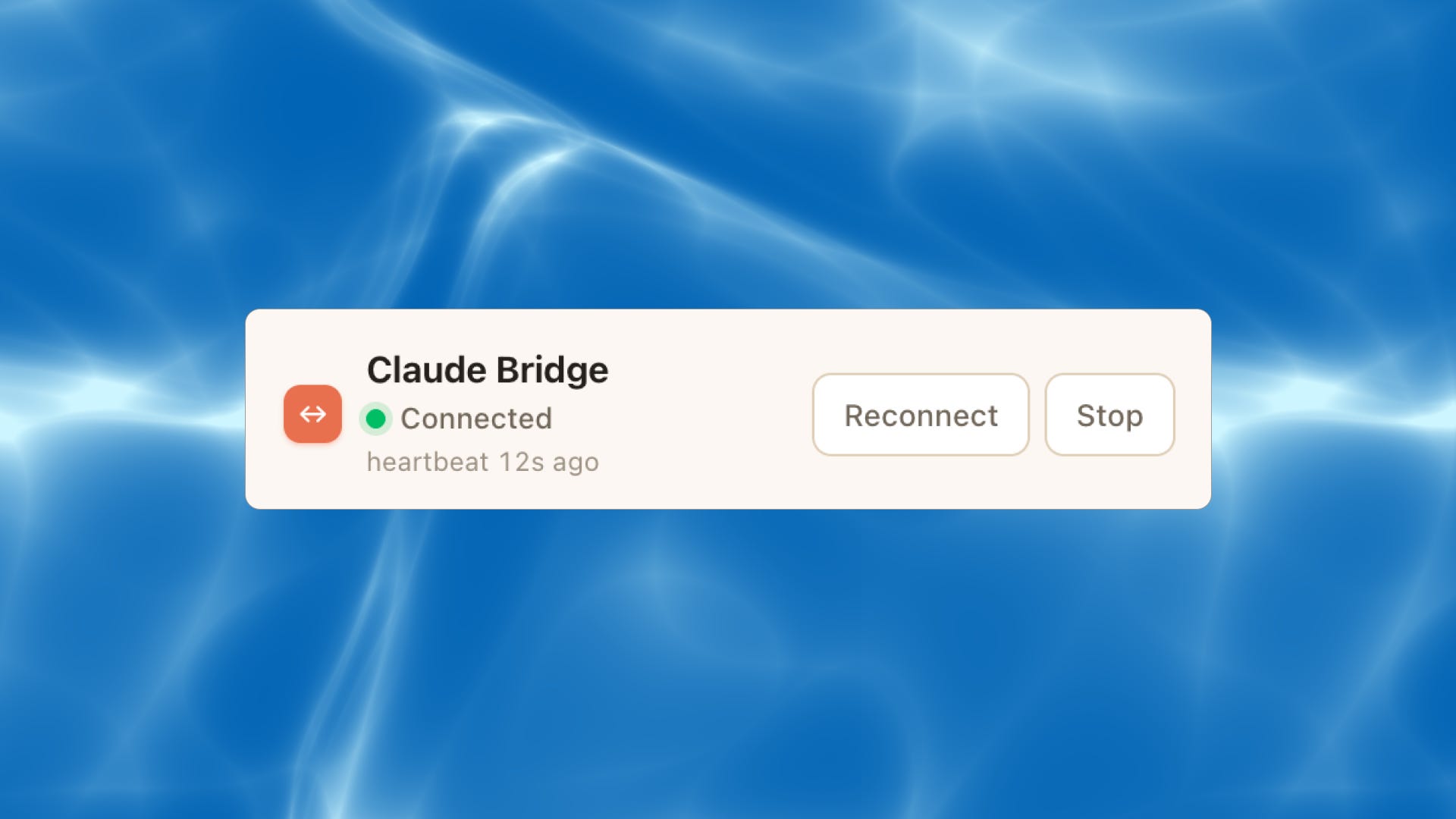
The connection is a small thing technically and a big thing in practice. The plugin opens a local socket, Claude Code connects to it, and the tools show up on Claude’s side immediately. You flip one switch in the plugin, the dot turns green, and now you can say “read my current selection and build the empty state next to it” and it does, against the live file.
And the connection holds, which matters more than it sounds. The bridge runs on a heartbeat. It pings on a steady beat and the plugin shows you when it last heard back, so a green dot means actually live, not a socket that quietly died ten minutes ago. If the link drops, it reconnects on its own, and a watchdog notices a silent connection and re-handshakes it. The first version of this thing would connect and then die halfway through a build, which is the worst possible moment. This one stays up while you work. For an agent editing your real file, that reliability is the whole game.
The plugin panel itself does two things, and that is the point: connect the bridge, and pick the project. If you have a few Claude Code sessions open, a small picker lets you choose which one DesignAgent reads and writes, so the agent and the file you mean are always the same thing. Everything else happens in the terminal.
It is all local. No API token to mint, no paid seat, no cloud roundtrip. The plugin runs with network access switched off, so the whole exchange stays on your machine. Nothing about your file leaves the room.
1. Install the bridge
DesignAgent is two halves that talk to each other: the Figma plugin and a Claude Code plugin that ships the bridge.
The Figma plugin is on the Community: search DesignAgent, or open it here.
The Claude Code side installs from the marketplace:
/plugin marketplace add sherizan/designagent-figma
/plugin install designagent@designagent
Restart Claude Code after the install. That gives you the design-to-code skill and the designagent MCP server in one shot. Node has to be installed, the server runs on it. Nothing else to configure.
2. Turn the bridge on
Open the DesignAgent plugin in Figma.
On the “Claude bridge” bar, click Start. The dot turns green and the status reads “Connected” when Claude links up. The bar also shows a heartbeat (”heartbeat 2s ago”) so you can tell the link is actually live and not stalled.
In Claude Code, the bridge tools are live immediately. Test it with one line:
Use DesignAgent to read my current Figma selection and tell me what is on it.If it comes back with the layers and structure of the screen you have selected, you are connected.
3. The prompt pack I run
These are the kinds of instructions I actually run. They are in assets/prompt-pack.md as well, ready to paste.
Extract the tokens to DESIGN.md
Extract the tokens from my current selection (colors, type, spacing, radius) and write
them to DESIGN.md. Use my real values, do not round or invent any.
Create a design system from a logo
Look at the logo I have selected. Create a foundation for my design system and create/update DESIGN.mdBuild the first set of UI components
Using the tokens in DESIGN.md, build a first set of components on a new frame: buttons
(primary, secondary, ghost), slider, toggle and a form (input with label and an error state). On-system only.
Design a landing page with the UI components
Using the tokens in DESIGN.md, design a marketing landing pageWrite the screen copy in your voice
If you have your tone of voice in a markdown, you can use DesignAgent to write copy for the screens.
Read voice.md. Write the copy for the screen I have selected using that tone of voice,
and set it on the matching text nodes. Show me each change before you apply it.
Create a social asset from your branding
Create a social media asset templates for LinkedIn/Substack in Figma. Use the branding in DESIGN.md (my colors, type, and logo). Keep every value on-system.The discipline that makes these work: scope it tight. One frame or one flow at a time, not the whole file. The agent is precise when the target is small and drifts when you point it at everything at once. And let it check its own work: build, screenshot, compare to DESIGN.md, fix.
Bonus: Mobbin MCP: Use DesignAgent to paste the screens into the frame.
Use Mobbin MCP to extract Revolut onboarding flows and paste them to FigmaMy Takeaway
This is the part I did not expect to feel so different. Claude is not looking at my design anymore. It is designing on it.
Claude designs on your real canvas. The same model you already work with, now with hands in Figma. It builds, edits, and arranges on the live file, not a copy of it.
It brings everything you have taught it. Your plugins, your MCP servers, your skills, your
CLAUDE.md, and your taste all come with it. You are not starting a new tool from zero.It goes from nothing to a system. A logo becomes tokens. Tokens become buttons and forms. A screen gets copy in your voice. Your branding becomes a finished social asset. All on-system, all in one session.
It checks its own work. It screenshots what it built, compares it to your
DESIGN.md, and fixes what came out off. Build, look, correct.It is yours and it is private. Free, local, no token, no extra seat. Nothing leaves your machine.
You still hold the taste. You decide what good looks like, what to keep, what to cut. The bridge just means the agent that already knows your work can finally reach the canvas and do the hands-on part with you. Design and code, one loop, one source of truth, one agent you already trust. That is the shift, and it is a big one.


