
There’s a moment every designer and developer knows well.
You’ve spent hours getting the component just right inside Figma. The spacing is tight, the tokens are named correctly (mostly), and the layout actually makes sense. You open up your AI coding tool and then you write a prompt. Something like:
“Build this card component in React Native.”
And what comes back is... close. But not right. The padding is off. The component ignores your design tokens. The variant states are missing. So you iterate. You write a better prompt. You get closer. You iterate again.
What just happened wasn’t a failure of AI. It was a failure of context. The model didn’t know what it didn’t know and neither did you, until you saw what was missing.
I built DesignAgent because I kept living in that gap.
The Real Problem with Prompting from Design
When us designers use AI to turn Figma screens into code, the quality of the output lives and dies by the quality of the prompt. But here’s the thing nobody talks about: most of us designers don’t know what information a good prompt actually needs, and most developers don’t have time to decode a Figma file to find out.
There are a few things that silently break every build:
Components without auto-layout that confuse the AI’s understanding of spacing relationships
Design tokens that exist in Figma but never make it into the prompt
Platform mismatches: a component built for web being prompted for a React Native context without adjustment
Missing variant states, unnamed layers, and absolute positioning that looks fine visually but generates brittle code
The result? Inconsistency. Every prompt is a guess. Every handoff is a negotiation.
What DesignAgent Actually Does
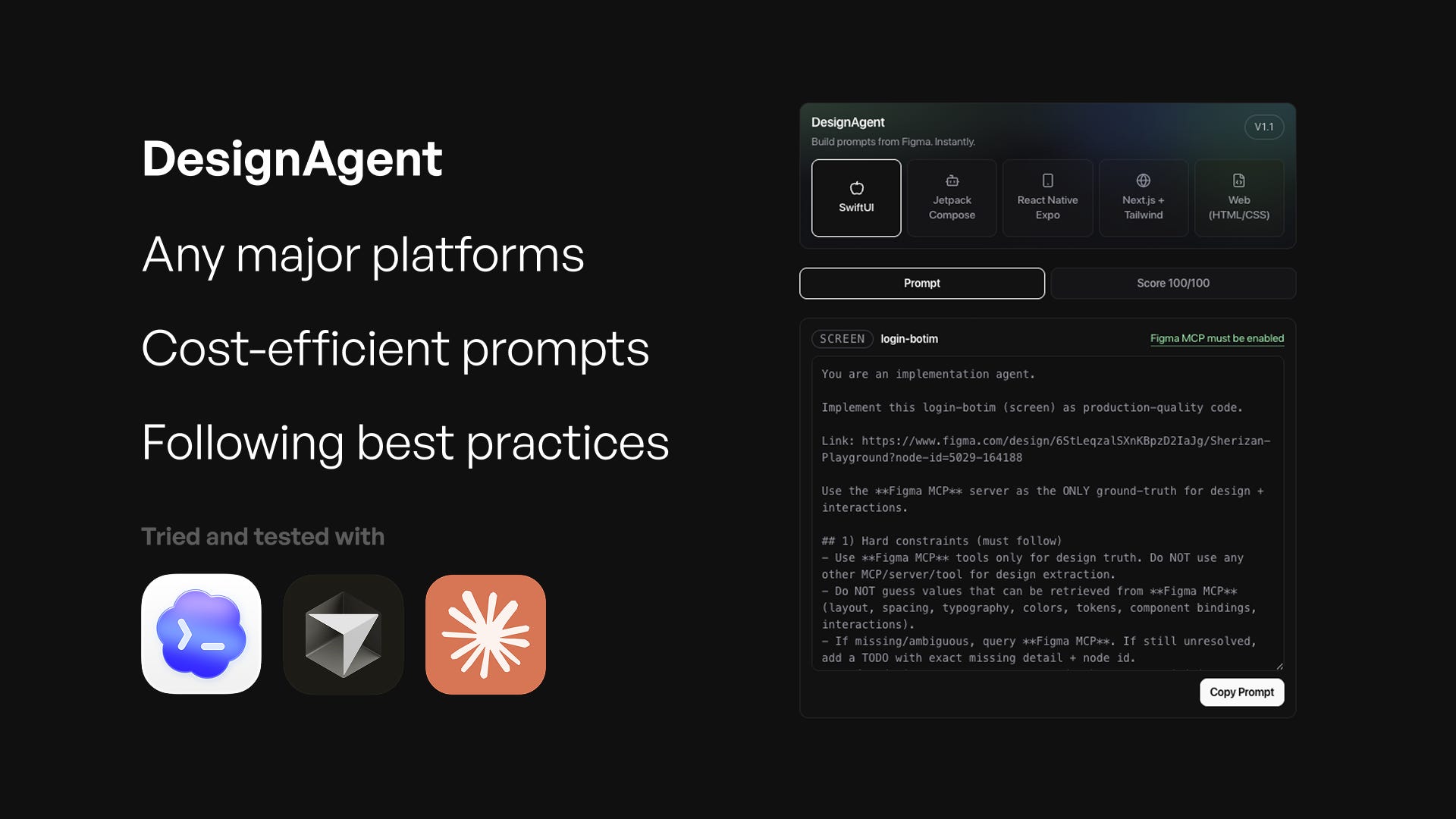
DesignAgent is a Figma plugin that sits inside your workspace and does something really simple: it reads your current selection, scores it, and writes the prompt for you.
Not a generic prompt. Not a template you fill in. A context-specific, developer-ready prompt built from what’s actually in your design right now, for the platform you’re actually building on.
Select a component. Open the plugin. Choose your target platform. The prompt is ready.
Five platforms, one consistent workflow
DesignAgent supports five presets out of the box:
Next.js + Tailwind — for web teams building with the modern React stack
React Native + NativeWind — for mobile teams who want utility-class consistency across platforms
Web HTML/CSS — for projects that don’t live inside a framework
SwiftUI — for iOS builders working natively
Jetpack Compose — for Android developers handling UI in Kotlin
Switch the preset, and the prompt changes. The structure adapts. The warnings update. The guidance reflects what that specific platform needs from your design.
It doesn’t just generate.. it scores.
Here’s the part that surprised even me during development: the scoring system became the most valuable feedback loop.
Before you ever copy a prompt, DesignAgent evaluates your selection across five dimensions:
component structure
tokenization
layout
naming
variant coverage
And gives you a score. It surfaces warnings where things will likely break in code. It flags absolute positioning. It tells you when you’re missing token references that your prompt will assume exist.
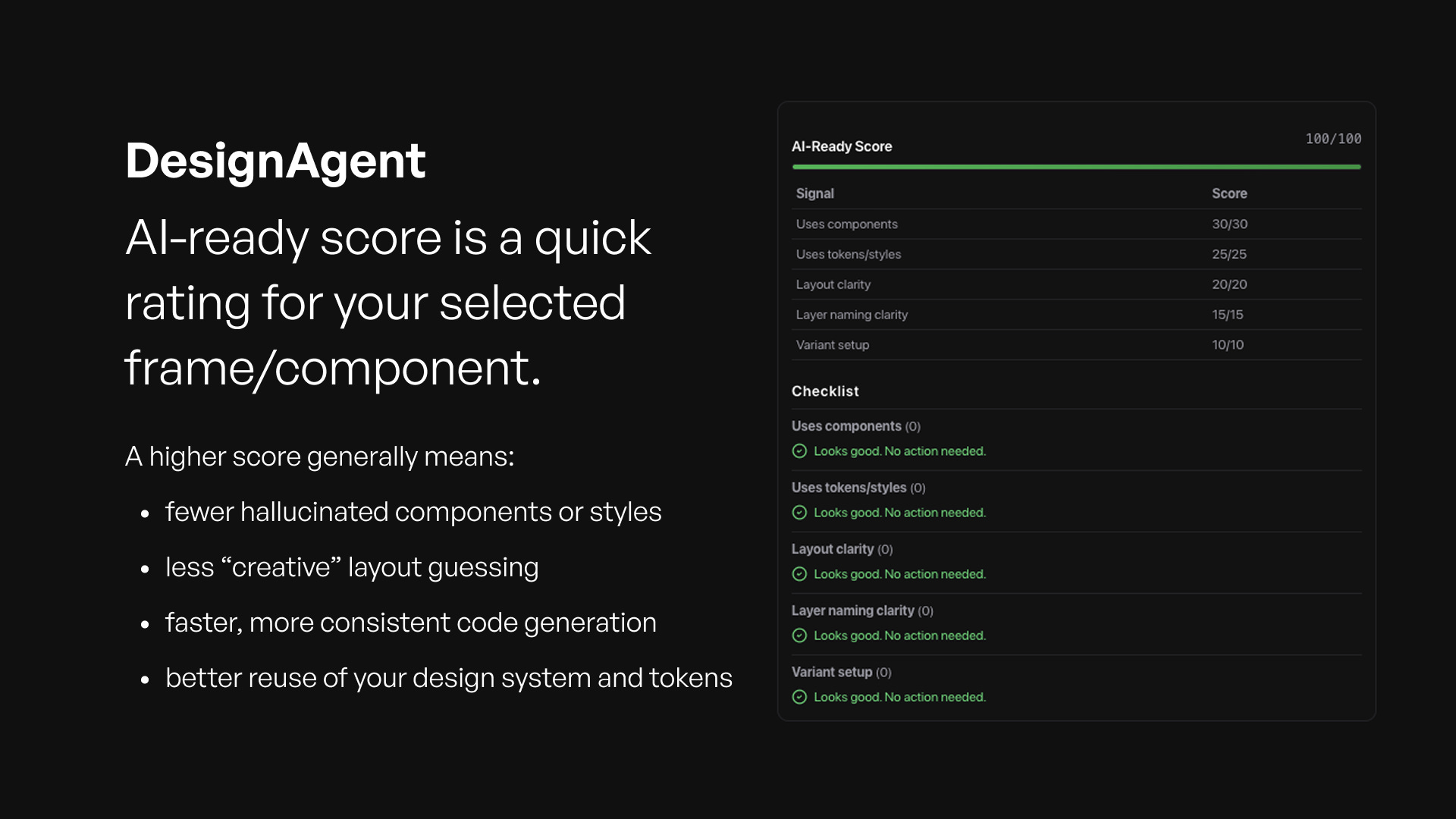
You don’t have to guess why the output isn’t right. The plugin tells you, in plain language, before you ever leave Figma.
What’s Actually Inside a DesignAgent Prompt
This is the part I want to spend some time on, because it’s where the real work happens and it’s what makes DesignAgent different from any other prompt generator I’ve seen.
Most “prompt generators” are wrappers. They take what you tell them and rephrase it. DesignAgent is not that. The prompt it builds is a structured engineering document and it contains things you would never think to write yourself.
1. It knows what you selected
Before a single word of the prompt is written, DesignAgent reads your selection and classifies it. Not just the name and the size, but the intent: is this a screen? A standalone component? A reusable section? A multi-frame flow?
The classification matters because each of these things needs to be built differently. A screen prompt includes rules for a single output file. A flow prompt includes a sequencing spec — screen order, transitions, routes — before any code is written. A component prompt focuses on props and variants. A section prompt includes instructions for how it mounts into a parent screen. The prompt structure changes based on what you actually selected, not what you described.
2. It sets Figma as the only source of truth
One of the hardest problems in AI-assisted UI development isn’t generating code. It’s preventing the AI from making things up. Left to its own devices, an AI coding tool will fill in gaps with reasonable-looking guesses and those guesses are where bugs and inconsistencies are born.
Every DesignAgent prompt includes a set of hard constraints that the AI must follow. The most important: it may not guess any value that can be retrieved directly from your Figma file. Spacing, typography, color, tokens, component bindings all of it must come from the design. If something is ambiguous or missing, the AI is instructed to surface it as an open TODO with the exact node reference, not to make a decision on your behalf.
This is the “no invention” rule, and it’s baked into every prompt DesignAgent generates.
3. It tells the AI how to read your design in the right order
Here’s something that surprised me in development: the sequence in which an AI queries Figma matters enormously for both accuracy and efficiency. Request too much at once and the context overflows. Request in the wrong order and you miss dependencies between tokens, components, and interactions.
DesignAgent builds a specific, ordered reading strategy into every prompt. It tells the AI to start shallow just the root and immediate children and only go deeper where the design requires it. Then variables and tokens. Then component mappings. Then visual reference. Each step has a fallback if the previous one returns incomplete data.
This sequencing is invisible to you as a user. But it’s what separates a prompt that produces consistent, production-ready code from one that produces something close but structurally off.
4. It accounts for your design system
If your components have Code Connect mappings a Figma feature that links design components to their code equivalents DesignAgent’s prompts will instruct the AI to use those mappings. Not as a suggestion. As a requirement.
The prompt also tracks token coverage: which values in your design are backed by a design token versus which ones are raw hardcoded values. This shows up in the scoring panel, and it also shapes the prompt. The AI is told where tokens exist, where they don’t, and how to handle each case. The result is code that references your actual design system rather than inventing a parallel set of magic numbers.
5. The output is structured, not open-ended
Most AI prompts end with something vague like “build this.” DesignAgent prompts end with a precise output contract: a file tree, code blocks labeled by filepath, and an open TODOs list for anything the AI couldn’t resolve from the design. No alternatives. No multiple implementations.
This matters for teams. When every developer is working from the same structured prompt format, the code that comes back follows the same structure too. It’s reviewable. It’s predictable. It fits into your existing codebase rather than arriving as a surprise.
Why Consistency Matters More Than You Think
The dirty secret of AI-assisted development is that the variance in prompt quality creates variance in output quality (garbage in, garbage out) and that variance compounds across a team.
When four engineers on the same project are prompting from the same designs but writing their own prompts, you get four different interpretations of the same component. Over time, that becomes technical debt. Inconsistent spacing. Token values hardcoded in some places, referenced in others. Components that look the same in Figma but behave differently in production.
DesignAgent solves this not by being opinionated about your design but by being precise about what your design already says. The prompt it generates isn’t my interpretation of your component. It’s a structured reading of your Figma node, translated into the language your AI coding tool needs to hear.
Same design, same platform, same prompt. Every time. Whether it’s you or a teammate who just joined the project.
Who This Is For
If you’re a designer who’s tired of being told “the code doesn’t match the design” then DesignAgent is for you. Not because it fixes the code, but because it equips you with the context to communicate your design accurately to AI tools and to the developers working alongside them.
If you’re a developer who spends too much time reverse-engineering Figma files to write a good prompt then DesignAgent is for you. The analysis work is already done. The spec is already extracted. The prompt is already written.
If you’re a team that’s trying to move faster without letting quality slip — DesignAgent gives you a shared language between design and code that doesn’t depend on whoever wrote the prompt that day.
Where We Are Right Now
DesignAgent is currently available in Figma Community. That means the core engine is working: the analysis, scoring, prompt generation and platform presets are all live inside Figma.
I’d love to hear what breaks, what surprises you, and what you wish it did differently.